How to Backup and Restore Chats in GB WhatsApp
Introduction
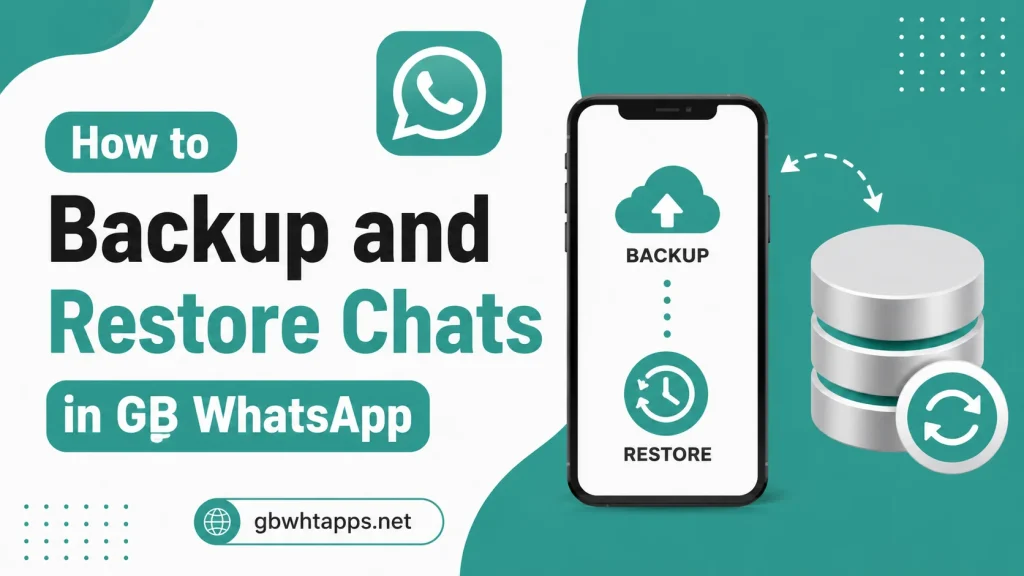
Your conversations are one of the most valuable parts of any messaging app. Whether they contain personal memories, work-related discussions, important documents, or shared media, losing your chats can be frustrating. That’s why creating regular backups in GB WhatsApp is essential.
Backing up your chats allows you to protect your messages and media before updating the app, switching to a new phone, resetting your device, or reinstalling GB WhatsApp. If anything goes wrong, you can quickly restore your conversations and continue chatting without starting from scratch.
This complete guide explains how to back up and restore chats in GB WhatsApp, the different backup methods, common restoration problems, and best practices for keeping your data safe. For more tutorials and GB WhatsApp guides, visit gbwhtapps.net.
Why Chat Backup Is Important
Creating backups protects your important conversations from unexpected problems.
A backup helps you:
- Save text messages
- Protect photos and videos
- Preserve voice messages
- Keep documents safe
- Restore chats after updates
- Transfer conversations to another device
- Recover data after reinstalling the app
- Prevent accidental data loss
Making backups regularly gives you peace of mind.
What Does a GB WhatsApp Backup Include?
A complete backup may contain:
- Personal chats
- Group conversations
- Photos
- Videos
- Voice notes
- Documents
- GIFs
- Stickers
- Shared links
- Chat settings
Depending on your backup method, media files may require additional time to save.
When Should You Create a Backup?
It is recommended to create a backup before:
- Updating GB WhatsApp
- Installing a newer version
- Resetting your phone
- Switching to another Android device
- Reinstalling the application
- Performing major Android updates
- Clearing app data
Creating a backup before making changes helps protect your conversations.
Minimum Requirements
Before creating a backup, ensure your device meets these basic requirements.
| Requirement | Recommended |
|---|---|
| Android Version | Android 6.0 or later |
| Free Storage | At least 1 GB |
| Battery | Above 30% |
| Internet | Stable connection (if required) |
| GB WhatsApp Version | Latest available version |
Having sufficient storage is especially important if you have many media files.
How to Back Up Chats in GB WhatsApp
Creating a backup is simple.
Follow these steps:
- Open GB WhatsApp.
- Tap the menu icon.
- Open Settings.
- Select Chats.
- Tap Chat Backup.
- Choose Back Up.
- Wait until the backup process finishes.
The backup time depends on the size of your chats and media.
Check That the Backup Is Complete
After the backup finishes, verify that it completed successfully.
Check:
- Backup completion time
- Backup file size
- Available storage
- Number of messages backed up
Confirming the backup gives you confidence before updating or reinstalling the app.
How to Restore Chats in GB WhatsApp
If you’ve already created a backup, restoring it is straightforward.
Step 1
Install or update GB WhatsApp.
Step 2
Open the application.
Step 3
Verify your phone number.
Step 4
When prompted, tap Restore.
Step 5
Wait while messages and media are restored.
Step 6
Complete the setup process.
After restoration, your previous conversations should appear.
How Long Does Restoration Take?
The restoration time depends on several factors.
These include:
- Backup size
- Number of chats
- Media files
- Device performance
- Available storage
Large backups with many videos and photos may take several minutes.
Backup Before Updating GB WhatsApp
Updating GB WhatsApp is much safer when you create a backup first.
Benefits include:
- Prevents chat loss
- Restores conversations easily
- Preserves media files
- Saves settings
- Reduces update risks
Always back up before installing a newer version.
Restore Chats on a New Android Device
If you’re switching to another Android phone:
- Create a backup on your old device.
- Copy the backup if needed.
- Install GB WhatsApp on the new device.
- Verify the same phone number.
- Restore the available backup.
Following these steps makes moving to a new device much easier.
Common Backup Problems
Backup Doesn’t Start
Possible reasons:
- Low storage
- App permissions disabled
- Corrupted app data
Try freeing storage and restarting the device.
Backup Stops Halfway
Possible causes:
- Interrupted process
- Low battery
- Storage running out
Keep your phone charged and avoid closing the app during backup.
Common Restore Problems
Restore Option Doesn’t Appear
Possible reasons:
- No backup exists
- Wrong phone number
- Missing backup files
Always verify that your backup was successfully created.
Chats Missing After Restore
Possible causes:
- Incomplete backup
- Interrupted restoration
- Wrong backup selected
Creating regular backups helps reduce this risk.
Tips for Faster Backups
Follow these recommendations:
- Delete unnecessary media.
- Free storage space.
- Close background apps.
- Restart your phone before backing up.
- Keep the latest GB WhatsApp version installed.
These steps can speed up the process.
Best Practices
To keep your conversations safe:
- Back up your chats every week.
- Create a backup before every update.
- Keep enough free storage.
- Organize media files regularly.
- Avoid interrupting the backup process.
- Restart your phone after major updates.
Regular maintenance makes backups more reliable.
Mistakes to Avoid
Many users lose conversations because they make simple mistakes.
Avoid:
- Updating without creating a backup
- Deleting the app before backing up
- Running out of storage
- Interrupting the backup process
- Ignoring backup confirmation
- Using a different phone number during restoration
These mistakes are easy to prevent with proper preparation.
Backup Checklist
| Task | Completed |
|---|---|
| Chats Backed Up | ✔ |
| Media Included | ✔ |
| Storage Available | ✔ |
| Battery Charged | ✔ |
| Backup Verified | ✔ |
| Ready for Update | ✔ |
Benefits of Regular Backups
Creating backups regularly provides several advantages.
- Protects conversations
- Saves media files
- Makes updates safer
- Simplifies phone transfers
- Reduces data loss
- Restores messages quickly
- Improves peace of mind
A few minutes spent backing up can save hours of frustration later.
Backup vs Restore
| Backup | Restore |
|---|---|
| Saves current chats | Recovers saved chats |
| Protects messages | Restores conversations |
| Prevents data loss | Returns previous data |
| Done before updates | Done after installation |
| Creates backup file | Uses backup file |
Understanding the difference helps you manage your data more effectively.
Frequently Asked Questions
It is recommended to create a backup at least once a week and always before updating, reinstalling, or changing devices.
If they are included in your backup, your media files can be restored along with your conversations.
Yes. As long as you have a valid backup and verify the same phone number, you can restore your conversations on another compatible Android device.
Possible reasons include an incomplete backup, insufficient storage, or using a different phone number during restoration.
For more backup tutorials, installation guides, feature explanations, and troubleshooting articles, visit gbwhtapps.net.
Conclusion
Backing up your GB WhatsApp chats is one of the simplest and most important habits for protecting your conversations and media. Whether you’re updating the app, moving to a new device, or reinstalling GB WhatsApp, having a recent backup ensures that your messages remain safe and easy to restore.
By following the steps outlined in this guide, maintaining enough storage space, and creating backups regularly, you can avoid unnecessary data loss and enjoy a smoother messaging experience. Whenever you need additional help with backups, updates, or other GB WhatsApp features, gbwhtapps.net provides detailed guides to help you every step of the way.